Wednesday, 27 November 2024

CRM 365 Cloud - Disassociate 2 records using typescript

In case you need to Disassociate 2 records, please find below the code that allows you to do that.     


export async function DissociateEntities(primaryEntityType: string, primaryEntityTypeId: string, secondaryEntityName: string, secondaryEntityId: string, relationshipName: string) {


        debugger;

        var Sdk = window.Sdk || {};


        Sdk.DisassociateRequest = function (target: string, relatedEntityId: string, relationship: string) {

            this.target = target;

            this.relatedEntityId = relatedEntityId;

            this.relationship = relationship;

        };


        // NOTE: The getMetadata property should be attached to the function prototype instead of the

        // function object itself.

        Sdk.DisassociateRequest.prototype.getMetadata = function () {

            return {

                boundParameter: null,

                parameterTypes: {},

                operationType: 2, // Associate and Disassociate fall under the CRUD umbrella

                operationName: "Disassociate"

            }

        };


        // Construct the target EntityReference object

        var target = {

            entityType: primaryEntityType,

            id: primaryEntityTypeId

        };


        // The GUID of the related entity record to disassociate.

        var relatedEntityId = secondaryEntityId;


        // The name of the existing relationship to disassociate from.

        var relationship = relationshipName;


        var manyToManyDisassociateRequest = new Sdk.DisassociateRequest(target, relatedEntityId, relationship)


        await Xrm.WebApi.online.execute(manyToManyDisassociateRequest).then(

            function success(result) {

                console.log("Disassiciate Success!");

                // perform operations on record deletion

            },

            function (error) {

                console.log("Error Disassociating Entities " + error.message);

                console.log(error.message);

                // handle error conditions

            }

        );

    }

}


Hope it helps


CRM 365 Online - TypeScript - Execute Workflow


Please find a snippet code below for executing a workflow from TypeScript.

The only requirement here is to set the WorkflowId and the Id of the record plus the errorMessage and successMessage to use.

Xrm.Utility.showProgressIndicator("Creating .......");


let request =

{

    entity: { id: workflowID, entityType: "workflow" },

    EntityId: { guid: Id },

    getMetadata: function () {

        return {

            boundParameter: "entity",

            operationType: 0,

            //operation name is always “Execute Workflow” independent of workflow name

            operationName: "ExecuteWorkflow", parameterTypes: {

                "entity": {

                    "typeName": "mscrm.workflow",

                    "structuralProperty": 5

                },

                "EntityId": {

                    "typeName": "Edm.Guid",

                    "structuralProperty": 1

                }

            }

        }

    }

};


Xrm.WebApi.online.execute(request).then(

    function (result: any) {

        //alert("The confirmation email will be generated.");

        debugger;


        Xrm.Utility.closeProgressIndicator();


        let alertStrings = { confirmButtonLabel: "Close", text: successMessage, title: "Success" };

        let alertOptions = { height: 200, width: 400 };

        Xrm.Navigation.openAlertDialog(alertStrings, alertOptions).then(

            function (success) {

                console.log("Alert dialog closed");

            },

            function (error) {

                console.log(error.message);

            }

        );

    },

    function (error: any) {


        debugger;


        Xrm.Utility.closeProgressIndicator();


        let alertStrings = { confirmButtonLabel: "Close", text: errorMessage, title: "Error" };

        let alertOptions = { height: 200, width: 400 };

        Xrm.Navigation.openAlertDialog(alertStrings, alertOptions).then(

            function (success) {

                console.log("Alert dialog closed");

            },

            function (error) {

                console.log(error.message);

            }

        );


    });


Hope it helps.

Wednesday, 20 November 2024

CRM 365 Cloud - Open Form in new window or the same window with Typescript

Please find below the code for opening a form in Typescript.


 export function OpenForm(entityName: string, entityId : string, openInNewWindow : boolean) {


     let entityFormOptions = {

         entityName: entityName,

         entityId: entityId,

         openInNewWindow: openInNewWindow

     };

     // Open the form.

     Xrm.Navigation.openForm(entityFormOptions).then(

         function (success) {

             console.log(success);

         },

         function (error) {

             console.log(error);

         });


 }


Hope it helps.

Saturday, 23 March 2024

CRM 365 - Customer field only show Accounts

On a customer field, if the requirement is to only show Accounts, please add this line to the OnLoad of the form:

//Show only Account records when selecting the Customer    
formContext.getControl("customerid").setEntityTypes(["account"]);

Hope it helps

Friday, 25 February 2022

Microsoft Powerflow - Dynamics 365 - Get Email Template by Title

Let’s assume that you create a Cloud Flow that you will interact with for example trough a button in the account form ribbon.

When i started to work with Flows was already a couple of years ago, before i was using the Premium artifact for Dynamics 365, now we use the Dataverse artifact to interact with Dynamics 365.

For developers used to Web Api, and Odata, the queries that are needed in the Power Flow are kind of similar with the query string for interacting with CRM.

The example i want to show in this post is how to get an Email Template by Name with Dataverse in the flow. 

Please see below image regarding this example:

In my case my Email Template title is ‘[Account] - Send Gift to Customers’, to do that, we just set the Filter rows text as (title eq ‘[Account] - Send Gift to Customers’).

Assuming that you require only a couple of fields to be returned you can add them separeted by (,) in the ‘Select columns’ field.

Assuming that you need to use the ‘Email Template Id’ field returned by the call, there are a couple of ways of doing, for instance, you can add the artifact ‘Parse JSON’ where you add the body of the return and for the payload, you can copy and paste from the result of this item and collate after clicking on “Generate from Sample”.

Actually when working with Logic Apps and Power Flow you start to understand how things work and get used with small tricks to avoid adding unnecessary artifacts when you need only one or two properties.

In here, because i needed only the Email Template Id returned, and i knew it would be only returned 1 row, whenever you need to use it do the following:

  1. Start to select the ‘Expression’ and write first()

  2. Position the cursor inside of the brackets, and click on ‘Dynamic COntent’

  3. From the right artifact, select the property needed, in my case ‘Email Template Id’ and click ‘Update’

The result if you use the ‘Peek Code’ by clicking on the 3 dots from the artifact (in my case, the one on the screenshot above) will be something like:

first(outputs(‘Get_Email_Template_where_title_=’‘[Account]-_Account_send_gift_to_customers’’’)?[‘body/value’])?[‘templateid’]

So, i didn’t need to use the artifact for Parse the Json result returned from the call to after use the property templateid.

Hope it helps.

Wednesday, 9 February 2022

Microsoft Powerflow - Filter Json Array

 Recently I had to filter a Json Array of objects in Powerflow.

Let’s say we have a list of accounts and we need to filter by city name. In My case I was getting the data trough Dataverse.

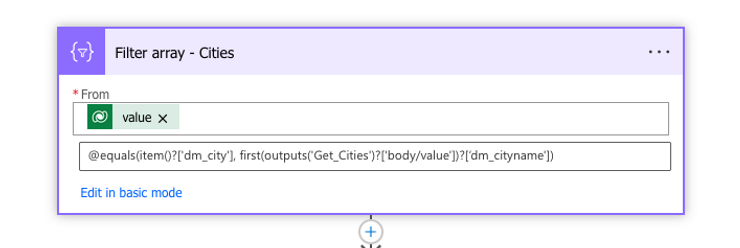
In order to achieve this on another array of Cities only, we can use the approach present in the below image.

Explaining the image we have the following:

  1. Value, in my case is the list of Cities that i have extracted from CRM from a custom entity.

  2. @equals(item()?['dm_city'], first(outputs('Get_Cities')?['body/value'])?['dm_cityname'])
    Where item()?[‘dm_city’] represents the field from the custom City entity The second part of the condition is ‘first(outputs(‘Get_Cities’)?[‘body/value’])?[‘dm_cityname’])’ where ‘dm_cityname’ represents the field from the dataverse query where the accounts were returned.

Hope it helps.

Saturday, 5 February 2022

Microsoft Powerflow - Dynamics 365 - Adding email attachments


 Consider this situation: you are working with Microsoft Dynamics 365 and need to generate an email using an email template, including attaching the email attachments.

It was a little bit tricky to figure out how to do it, the reason of that being the UI itslef induces the developer in error.

See the image below where we will explain what to fill and how to fill the data.

Explaining the fields to fill:

  1. Attachment(Attachments), this is the first trick field, the UI tells you that is a required field, than makes you thinking that you need to set a GUID if you read the content of the text box without any data. However, after trying and trying, i set the value to a null trough the Expression set data type, don´t try as Dynamic.

  2. Entity, this is without any doubts the most weird one, when you try to fill, it only allows to options, ‘Email Template’ and ‘Email Activity’. In this case, we thought we needed the Email Activity because we were creating a Email Attachment to an Email. The error given by the history is the one below:
    The entity with a name = ‘4200’ with namemapping = ‘Logical’ was not found in the MetadataCache….
    After googling and trying, i found the solution to be set the field as email as per printscreen. Has to be set as selecting ‘Enter custom value’, and set as email.

  3. The other fields are more or less explanatory, as per screenshot.

Hope it helps.

Tuesday, 29 September 2020

Using Key Vault reference in arm parameters file template, another scenario

Following the last post, where an example is given on how to use Key Vault in a Arm Parameters File Template.

That's a great idea for using Key Vault when deploying a resource with DevOps. However, that's not the only challenge you have, another question that can be important to ask is. And what about a Service Url that you can be using in a Logic App for example. 

First thing that probably comes to mind is: OK, let's create a parameter like [Service URL], set the value to the right URL needed for the purpose. And do that for all parameters files related to each environment.

Now, assume a disaster recover type of issue, where that [Service URL] is no longer available and instead you are provided a new one to configure in your Logic App. (Assuming the next steps are done only after provided the new URL)

Yes, you go back to your source control, change the relevant value in the parameters file, check in the code, most likely, promote the change, and finally with continuos integration it gets deployed to the specific environment. Now, I will ask you, how much time took you to perform that change, from the moment it got to you, until it was deployed? If your team has the coding and deployment well oiled, probably 1h, but as we know, not all companies have that so well implemented. What it means that it can take quite some time. 

Depending on how the availability affects the "Customer", most likely someone will be asked questions why it took so long a small change to point to a new URL?

There's where the Key Vault in here can have an important paper. Why not use the Key Vault for this purpose? Probably another interesting idea for using the Key Vault, don't you think? Instead of setting the URL for every environment "hard coded" in the parameters files, just create a Key in the Key Vault for that purpose and reference it.

For this specific scenario, and works really well. Assuming the same disaster scenario. The only thing needed would be ask someone to create a revision on the secret, set the value and that's it. How much time needed? Probably 2 minutes.

Any comments/questions are welcome.

Hope it helps.

Thursday, 24 September 2020

Azure Key Vault - Using in arm template parameter files

Let's start from the beginning, Microsoft says:

"Azure Key Vault is a tool for securely storing and accessing secrets. A secret is anything that you want to tightly control access to, such as API keys, passwords, or certificates. A vault is a logical group of secrets."

A colleague of mine told me about using a key vault reference in an arm template parameters file, the idea would be for accessing data like a password of a user for an SQL Server connection. 

The idea was brilliant, first, no passwords referenced in any file, second, deploying to a new environment, only thing that we need to change is the Resurce Group name, and Artifact name (Key Vault Name) from the ID of the resource.

That part it is easy if you work with some standard naming convention, for Azure purpose, and mentioned already in my previous post. Link: https://dynamicsmonster.wordpress.com/2020/09/22/configuring-arm-templates-deploying-to-different-environments/

As an example please see below JSON parameter, this is an example from a parameter file.

"sql_1_password": {
"reference": {
"keyVault": {
"id": "/subscriptions/[Dubscription Id]/resourceGroups/[Resource Group]/providers/Microsoft.KeyVault/vaults/[Key Vault Name]"
},
"secretName": "[Sql Password]"
}

So, you would have one parameter file per environment, the only thing you would need to change from example above is [Resoure Group] and [Key Vault Name], keeping the same secret name in the other key vaults in the other resource groups will work with no problems at all.

In next post will tell another scenario where using Key Vault in arm parameters files is useful.

Anything please comment here or contact us.

Hope it helps.

Follow us.

Thank you.

CRM 365 Cloud - Disassociate 2 records using typescript

In case you need to Disassociate 2 records, please find below the code that allows you to do that.      export async function DissociateE...